Watch the video above, then follow along with the step-by-step breakdown below.
The DNA Page
After logging in, click
DNA in the top menu. This is the central hub for your brand identity. When you first created your brand, the platform studied your website and extracted your logo, colors, typography, and market context automatically.
But you can improve all of this. If you have a brand book in PDF, click
Upload Brand PDF in the top-right corner and the platform will extract everything from it.
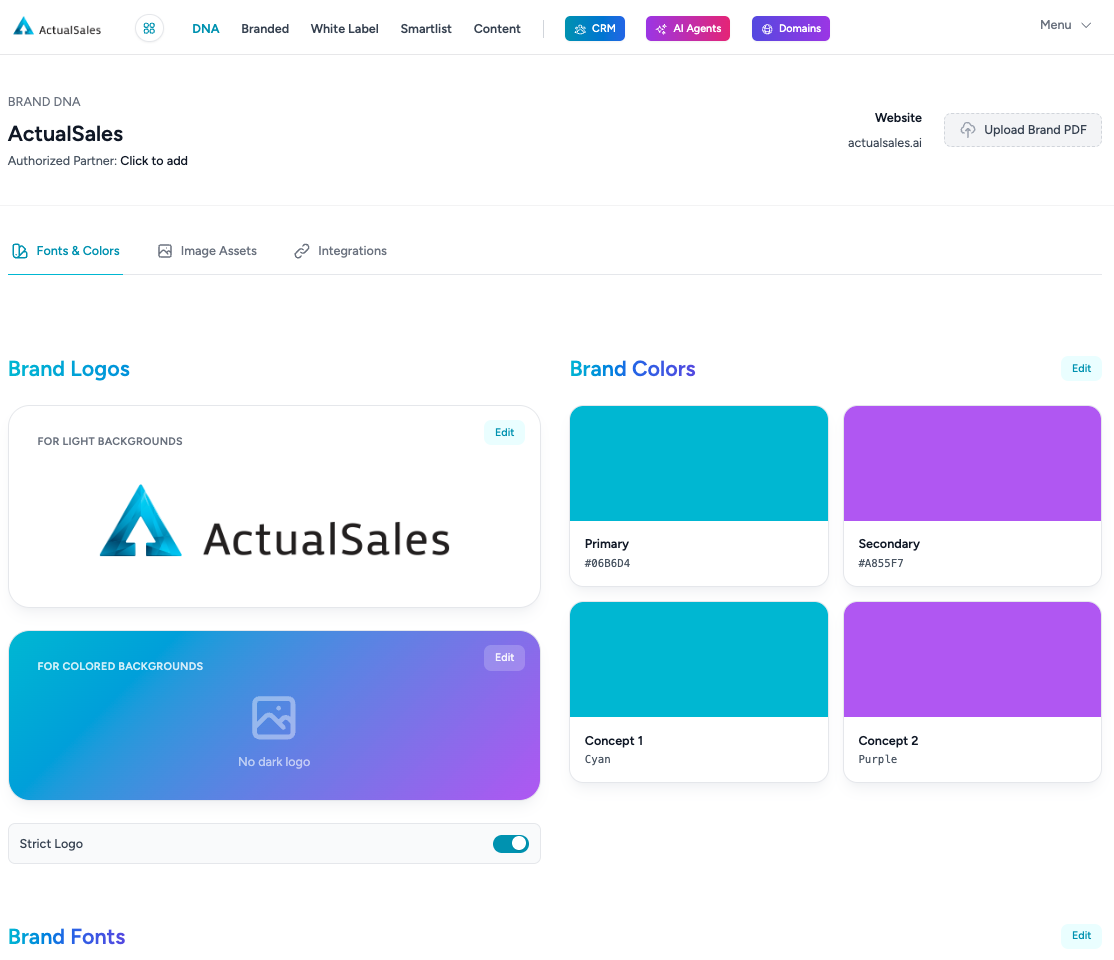
Brand Logos
You can upload or edit two logo versions:
- For Light Backgrounds — your standard logo on white/light surfaces
- For Colored Backgrounds — an alternate version for dark or colored backgrounds (e.g. white logo)
Below the logos, the
Strict Logo toggle ensures the exact logo you provide is used on all banners and materials — no AI modifications.
Brand Colors
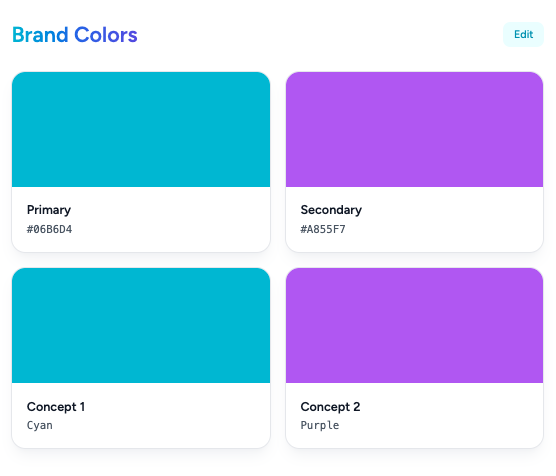
The platform supports four color slots:
- Primary — your main brand color
- Secondary — your accent color
- Concept 1 & Concept 2 — two additional colors for creative variations
Click
Edit to change any color using hex codes or a color picker.
Brand Fonts
Below the colors section you will find the
Brand Fonts area. Edit or add fonts that will be applied across all your landing pages and generated materials.
Inline Highlights
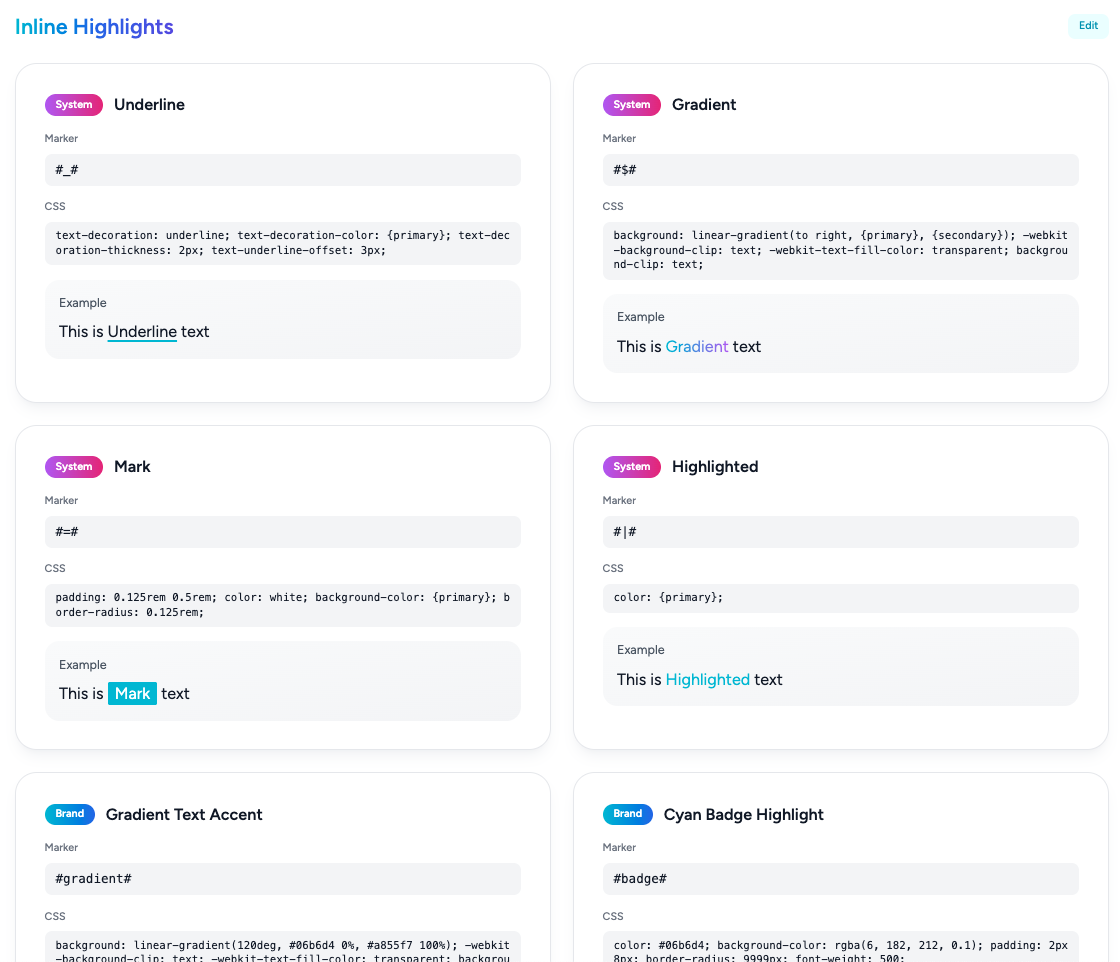
This is how you give text premium styles on your landing pages. Each highlight type has a
Marker (the syntax used in text) and
CSS that defines the visual style.
The platform comes with four
System highlight types — Underline, Gradient, Mark, and Highlighted. You can also create your own
Brand highlights like gradient text accents or badge-style highlights using your brand colors.
Upload Brand PDF
If you have a brand book or style guide in PDF format, click the
Upload Brand PDF button in the top-right corner of the DNA page. The platform will parse it and automatically extract your logos, colors, fonts, and brand guidelines.
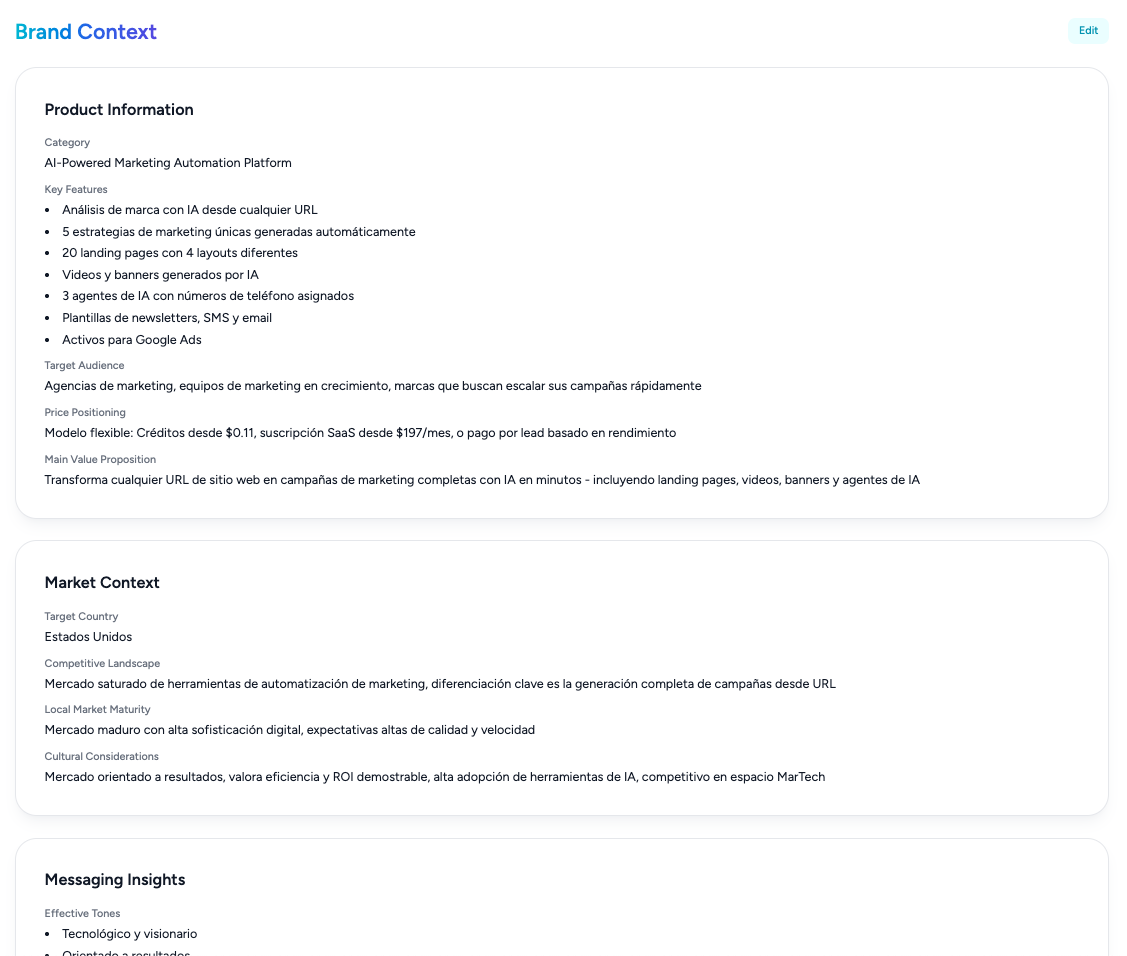
Brand & Market Context
At the bottom of the DNA page you will find the
Brand Context section. This contains everything the AI learned about your brand:
- Product Information — category, key features, target audience, price positioning, main value proposition
- Market Context — target country, competitive landscape, local market maturity, cultural considerations
- Messaging Insights — effective tones, key differentiators, communication style
Click
Edit to refine any of these fields. The brand context influences the communication in all future materials — ads, landing pages, emails, SMS, and creatives.
This concludes Session 2 of the ActualSales.ai Academy. See you in the next one!
