Watch the video above, then follow along with the step-by-step breakdown below.
The Ads Menu
Inside each strategy you will find the
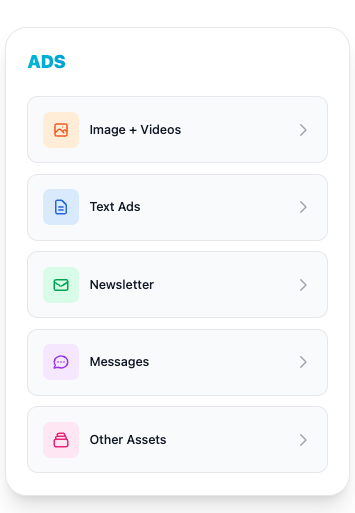
ADS sidebar with five sections:
- Image + Videos — visual creatives (covered in Session 5)
- Text Ads — headlines and descriptions for search campaigns
- Newsletter — email templates with subject lines
- Messages — SMS templates
- Other Assets — ad extensions (call to actions, callouts, sitelinks, etc.)
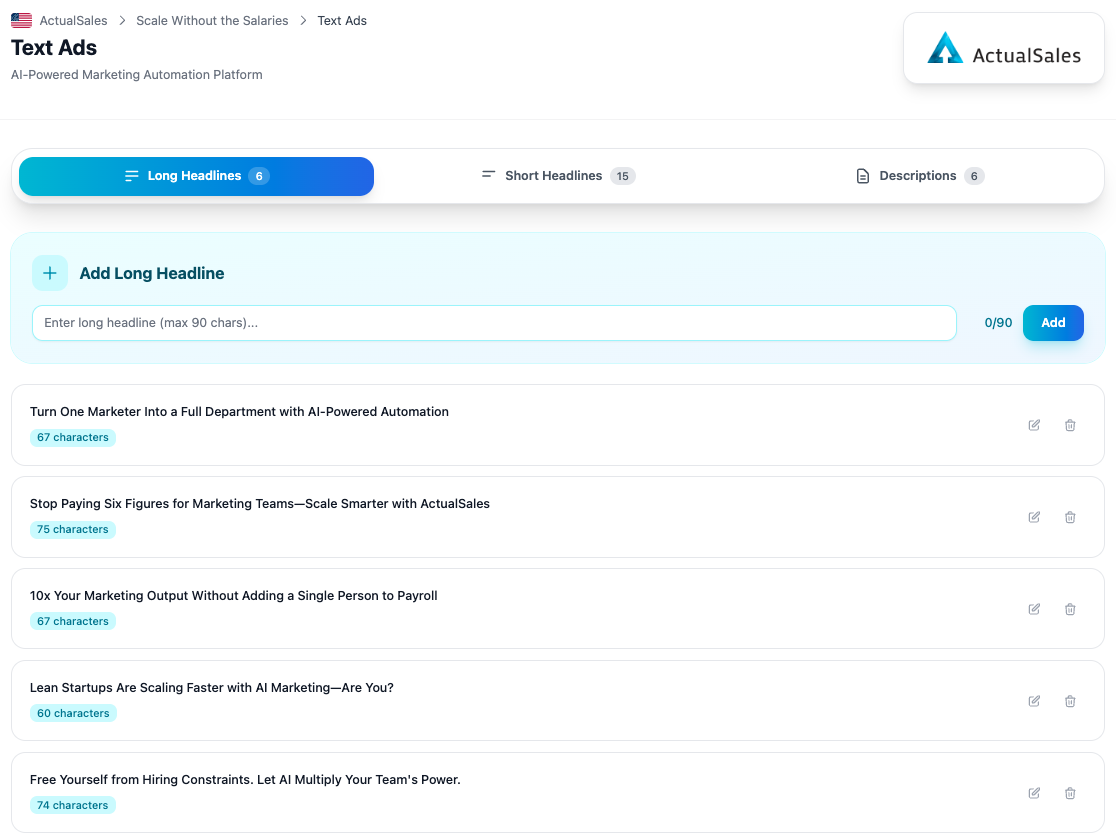
Text Ads
The
Text Ads page organizes your ad copy into three tabs:
- Long Headlines — up to 90 characters each, for expanded text ads
- Short Headlines — shorter variations for responsive ads
- Descriptions — supporting text for your ad campaigns
Each entry shows the text and character count. You can
edit or
delete any entry, and use the
Add field at the top to create new ones. The platform auto-generates these based on your strategy, but you have full control to customize them.
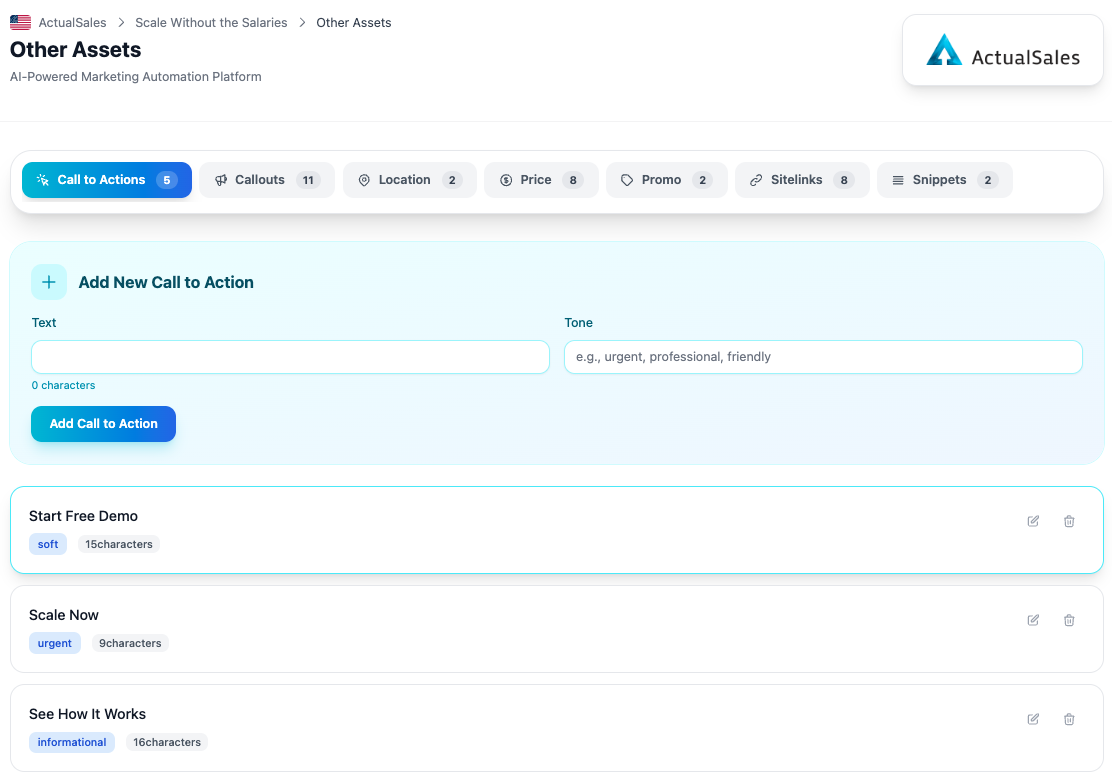
Other Assets & Ad Extensions
The
Other Assets page contains all your ad extensions organized by type:
- Call to Actions — CTA texts with tone labels (soft, urgent, informational)
- Callouts — short feature highlights
- Location — location extensions
- Price — price-based ad extensions
- Promo — promotional extensions
- Sitelinks — additional page links
- Snippets — structured snippet extensions
Each type has its own tab with a count. You can add new entries with a
Text and
Tone field, and edit or delete existing ones. The same add, edit, delete logic applies across all extension types.
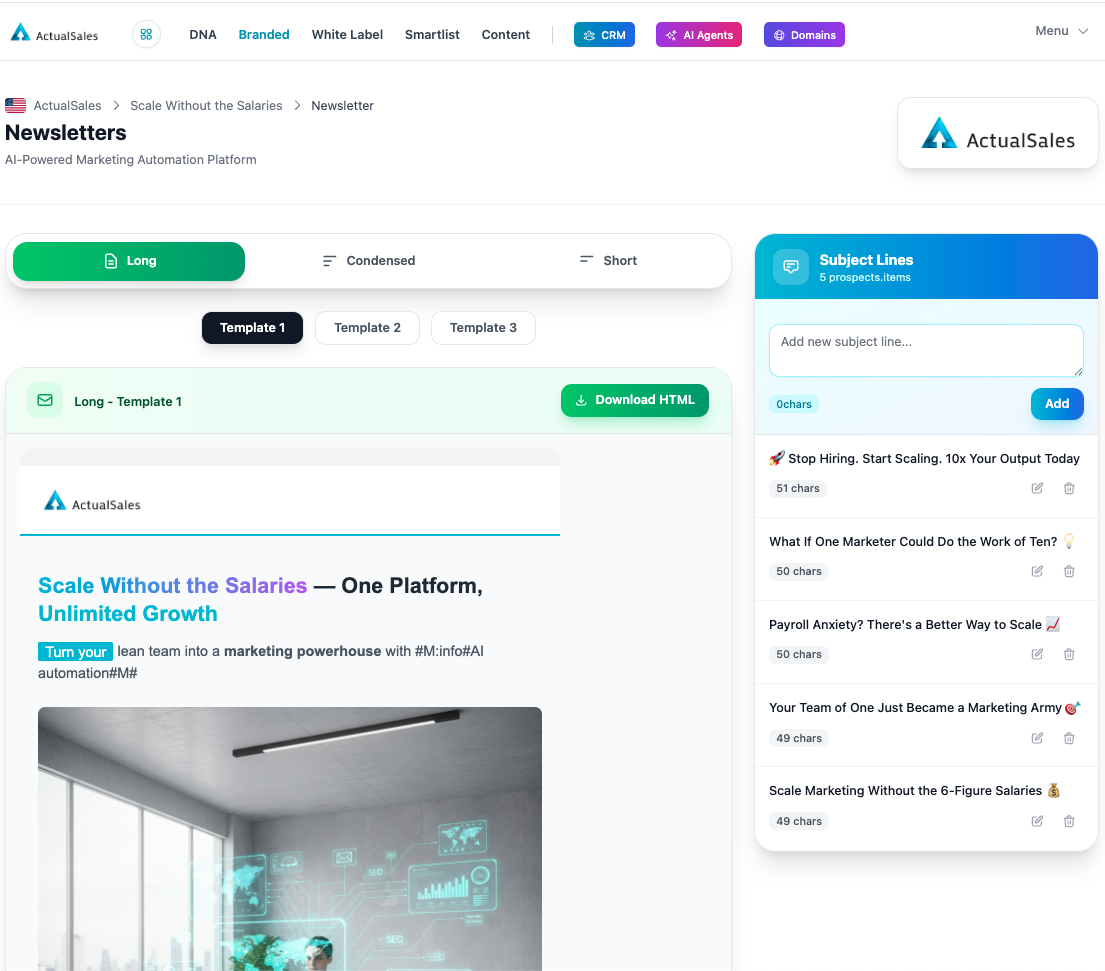
Newsletters
The
Newsletter section auto-generates email templates based on your landing pages. You can choose between three formats:
- Long — full-length email with detailed content
- Condensed — medium-length version
- Short — brief, punchy email
Each format has three
Template variations to choose from. The email preview shows the rendered HTML with your brand logo, headline, highlights, and images. Click
Download HTML to export the template.
On the right side, the
Subject Lines panel lets you manage email subject lines — add new ones, edit existing ones, or delete them. Each shows the character count for optimization.
SMS Messages
The
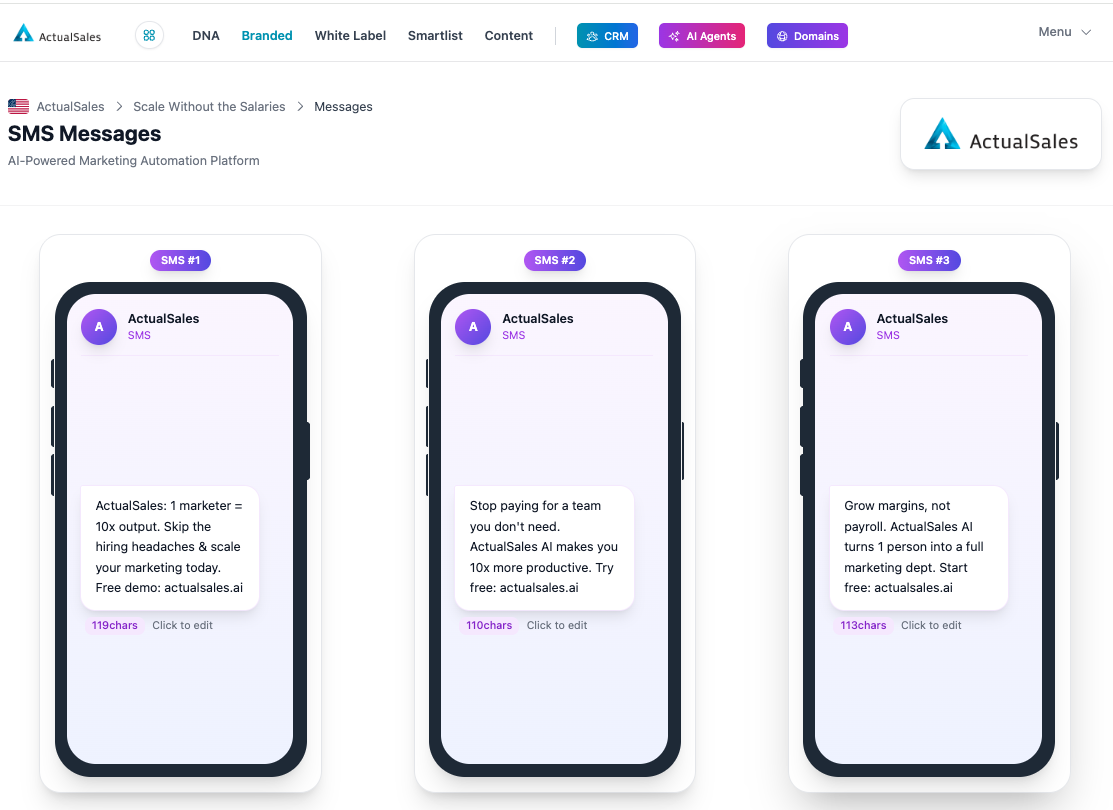
Messages section displays your SMS templates in a phone mockup view. Each message shows:
- The message text with your brand name and CTA
- Character count for SMS segment optimization
- Click to edit — inline editing for quick changes
The platform generates multiple SMS variations with different angles — direct benefit, social proof, urgency — all aligned with your strategy.
This concludes Session 6 of the ActualSales.ai Academy. Now you have all the text assets to run campaigns that generate actual sales. See you in the next session!
